
If you started using Zendesk before August 21, 2013, then you have a Web portal. You don't have to migrate to the Help Center if you don't want to. The Web portal will continue to be supported. However, if you're ready to migrate, use the workflow described in this article to move your legacy content to the Help Center.
You can only migrate to the Help Center if you have the most recent version of Zendesk. You have the most recent version if you started your Zendesk account on or after September 12, 2012. If you started before September 12, 2012, you'll have to switch to the new version of Zendesk if you haven't already done so. For more information, see the new Zendesk FAQ.
Topics covered in this article:
What's different in the Help Center
The Help Center shares many similarities with the Zendesk Web portal. It also has some differences. This section lists new, changed, planned, and deferred features in the Help Center.
New features
- A separate community platform
- More than one site-wide design out of the box
- Simple WYSIWYG branding
- Access to the site's HTML, CSS, JavaScript, and a library of pre-built page components
- Simplified handling of translated content
- Support for draft articles
Changed features
- Article forums are now called sections in the knowledge base.
- Question and idea articles in a forum are now questions and ideas in the community, where they're associated with topics.
- You can't set any access restrictions to content migrated to the community. Anybody can see the content. Exception: Content in forums with any access restriction is migrated to an agent-only internal community. Learn more.
- Community contributions and knowledge base comments are formatted using Markdown. See the Markdown syntax reference by John Gruber on the Daring Fireball website.
- You subscribe to articles and sections in the knowledge base, but you follow questions and topics in the community.
- Pinned and highlighted articles are now called promoted articles.
- The ability to restrict content to agents only is available only in the Plus or Enterprise plan. In the Web portal, the ability is available in the Regular plan too. If you have the Regular plan and use restricted forums to manage draft articles, you can use the new draft article feature in the Help Center. See Working with draft articles.
- The Help Center has different user roles. See Understanding Help Center user roles.
Planned features
- Including images or attachments in community posts
- Adding tags to articles
- Adding phrases to articles to boost the articles' search relevance
- Escalating articles and community items to tickets, and conversely
- Promoting content from the community to the knowledge base
- Reviewing tickets by organization
- Reviewing analytics
- Using moderation and spam tools
Deferred features
- Restricting content by language. There's a simpler way to publish content in other languages. See Localizing the Help Center
- Giving signed-in end-users the ability to add or edit articles in the knowledge base. Only Help Center managers or agents can create articles in the knowledge base. End-users contribute to the community.
- Marking ideas as Planned or Done. You can replicate this functionality by creating community topics with names like "Ideas - Suggestions", "Ideas - Planned", and "Ideas - Done". See Managing discussion topics
- Inserting tables in articles with the rich text editor. An alternative is using one of several online HTML table generators and pasting the generated code in your article's HTML view
- Adjusting search relevance of articles based on whether agents or end-users created them
How your content is copied to the Help Center
The migration process copies the content on the Web portal to the Help Center. It does not copy any layout or design customizations, or widgets. See Migration limitations below.
Web portal content is copied to the knowledge base or the community in the Help Center. The choice depends on the forum type in the Web portal. The Web portal supports three forum types:
- Question forums let users ask questions and encourage others to answer questions or vote for answers.
- Idea forums let users suggest ideas and also comment and vote on ideas posted by others.
- Article forums are used to build an official knowledge base.
The basic copying rules are as follows:
- Idea and question forums are copied to the community.
- Article forums are copied to the knowledge base.
What's copied to the knowledge base?
Article forums are copied to the knowledge base.
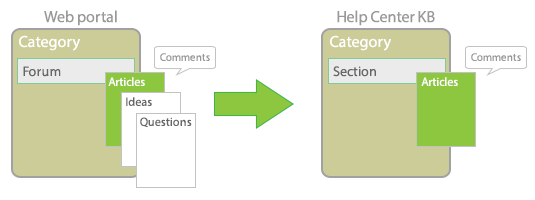
Your content maps to the knowledge base as follows:
| Web portal | Knowledge base in Help Center |
|---|---|
| Articles in categories and forums | Articles in categories and sections. All access restrictions are preserved, except for language restrictions. |
| Articles in language-restricted forums | Articles in agent-restricted sections (see Translated articles in Migration limitations below) |
| Comments | Comments formatted in Markdown without images or attachments |
| "Posted on" timestamp | "Last updated" timestamp (e.g., "3 days ago") |
| Attachments | Attachments |
| Votes | Up votes |
| Pinned article status | Promoted article status |
| Highlighted article status | Promoted article status |
| Forum and article subscriptions | Section and article subscriptions |
What's copied to the community?
Idea and question forums are copied to the community.
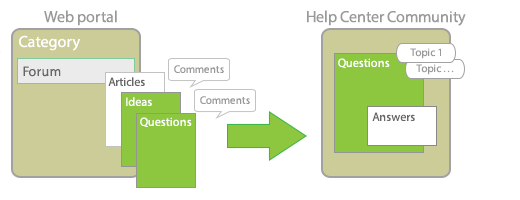
Most interactions in a support-oriented community are questions and answers. However, the term "question" in the Help Center community can include any piece of useful content that a user wants to contribute to the community, such as an idea, a tip, or a feature request.
Warning: You can't set any access restrictions to content migrated to the community. Everybody will be able to see the content. Exception: Content in forums with any access restriction is migrated to an agent-only internal community. Learn more.
Your content maps to the community as follows:
| Web portal | Community in Help Center |
|---|---|
| Articles | Questions or ideas formatted in Markdown |
| Comments | Answers formatted in Markdown |
| Categories and forums | Topics, formatted as "<Category> - <Forum>" |
| Images | Not migrated |
| Answer status on comments | Accepted answer status |
| Planned or Done idea status | Not migrated (no equivalent in Help Center) |
| "Created at" timestamp | "Last updated" timestamp (e.g., "3 days ago") |
| Attachments | Not migrated |
| Subscribers | Followers |
| Votes | Up votes |
| Content in forums with any access restriction | Content in the internal community. Learn more |
Migration limitations
The following are known limitations of migrating Web portal content to the Help Center:
Web portal customizations
Because the Help Center is a complete redesign, any CSS and JavaScript customizations you made to the legacy Web portal can't be used in the Help Center without modification. You'll have to recreate and modify them for the Help Center. See Customizing the Help Center.
If you need assistance transferring your customizations to the Help Center, contact Zendesk Services for options and pricing.
Translated articles
The Help Center doesn't support language-restricted sections. The translated versions of an article are stored in a single record with the original version of the article. The original article and all its translated versions share the same URL except for the locale parameter. For example, the following URLs point to the English and French versions of the same article:
https://mondocam.zendesk.com/hc/en-us/articles/111222
https://mondocam.zendesk.com/hc/fr/articles/111222
In the Web portal, however, a translated article doesn't have the same URL as the original article, nor does it have any other connection to the original article. Because of the lack of information, the articles in a language-restricted forum are migrated to a separate knowledge base section that only agents and Help Center managers can view. You must manually add the translated articles to the records of the original articles to make them available in other languages. See Step 4: Integrate your translated content below.
Content in restricted forums migrated to agent-only internal community
If a forum in the Web portal has access restrictions of any kind, including language restrictions, and the forum is migrated to the community, the content is migrated to an internal community visible only to agents and admins.
There's no facility to move content in the internal community to the public community. If you want the content to be available in the public community, remove the forum restrictions in the Web portal and then re-copy the Web portal content into the Help Center.
Article comments
Comment formatting is migrated using Markdown. Embedded images and attachments are not migrated.
APIs
APIs for creating and managing content in the Help Center will be available soon.
Migrating your Web portal
The workflow for migrating your Web portal to the Help Center consists of the following steps:
Copying your content to the Help Center in setup mode
Start by copying your Web portal content to the Help Center. The Help Center is in setup mode at this point. The content is meant to serve as placeholder content while you customize the Help Center. Only Help Center managers and agents can access the content.
You shouldn't make official updates to the content in the Help Center. The changes will be lost when you get the latest content from your Web portal before deploying the Help Center.
You don't have to freeze your Web portal content during this period. Keep making updates to it. You'll copy the content to the Help Center one last time before deploying the Help Center.
Copying the content is an automated process. See How your content is copied to the Help Center above for details.
To copy your Web portal content to the Help Center
- Sign into Zendesk as an administrator and click the Help Center icon (
 ) in the sidebar.
 - In the dialog box that appears, select the option to set up the Help Center.
- Step through the brief setup wizard.
The wizard selects a layout for your Help Center based on your answers. You can change the layout later by choosing a different theme. See the next section.
Customizing the Help Center in setup mode
While in setup mode, adjust the look and feel of your Help Center. For example, add your product logo and your brand's colors and web fonts. If you're a web designer or a web-savvy administrator, you can make more extensive customizations by editing the page code. For instructions, see Customizing the Help Center.
Only agents and administrators can access the Help Center in setup mode. To see what the Help Center looks like to end-users or anonymous users, use thePreview As menu in the lower-right side when customizing the Help Center.
The following people might need to be added as Help Center managers to work on the Help Center: web designers, writers, editors, and production specialists. For more information, see Understanding Help Center user roles.
Points to keep in mind when planning this work:
- You can take the time you need. Your users can keep using your Web portal and you can keep making updates to it. You'll replace the Help Center content with the latest Web portal content before deploying the Help Center.
- If you add, update, or delete content in the Help Center, your changes are lost if you copy your Web portal content to the Help Center again. We recommend modifying only the content in the Web portal during the setup phase.
- Any changes you make to the look and feel of the Help Center are preserved if you refresh the content.
- Because the Help Center is a complete redesign, any CSS and JavaScript customizations you made to your Web portal can't be used in the Help Center without modification. You'll have to recreate and modify the customizations for the Help Center.
- All Help Center pages have new URLs, but you don't have to change the links to most of the pages. Page redirects will be created for most pages when the Help Center is deployed. However, redirects won't be created for translated versions of articles. See Translated articles above.
If you need assistance customizing the Help Center, contact Zendesk Services for options and pricing.
Refreshing the content before deploying the Help Center
When you're ready to deploy, refresh the content with the latest content from your Web portal. Refreshing the content completely replaces it.
Keep in mind the following points before replacing the content:
- If you made changes to the look and feel of the Help Center, the changes are preserved when you replace the content.
- If you added or updated the content in the Help Center, the changes are overwritten by the Web portal content.
To refresh the content in your sandbox before deploying
- In the Help Center, click General Settings in the tools panel on the lower-right side of the page.
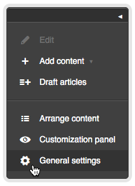
- On the General Settings page, select the option to copy your Web portal content to the Help Center again.
- Click Update.
Adding your translated content, if any
The articles in a language-restricted forum are migrated to a separate knowledge base section that only Help Center managers and agents can view. You must manually add the translated articles to the records of the original articles to make them available in other languages.
If the articles are from a question or idea forum in the Web portal, they're copied to the internal community that only Help Center managers and agents can view.
Plan the following clean-up work in the knowledge base before activating the Help Center:
- Manually add each translated version of an article to the original version of the article. You'll also have to create translated versions of your sections, categories, and Help Center. For instructions, see Localizing the Help Center.
- Delete any temporary holding categories, sections, and articles created during the migration. Tip: Deleting a category deletes all the sections and articles in it.
- Fix any links pointing to the translated articles in the Web portal.
Activating the Help Center
Activating the Help Center permanently deactivates your Web portal and redirects end-users to the Help Center. Even if the Web portal can't be reactivated, agents and administrators can still access it at /forums. Example: https://mondocam.zendesk.com/forums.
To activate the Help Center
- In the Help Center, click General Settings in the tools panel on the lower-right side of the page.
- On the General Settings page, select the option to activate the Help Center.
- Click Update.
Frequently asked questions
Do we have the option to keep using the Web portal?
You don't have to migrate to the Help Center if you don't want to. The Web portal will continue to be supported.
Why have Planned and Done ideas been removed? We use those pretty extensively.
You can organize ideas in the community by topic. Topics are basically tags or labels. You could create the following community topics:
- "Ideas - Planned"
- "Ideas - Done"
- "Ideas - Not planned"
Once these are set up, you can tag each idea with the appropriate topic (planned, done, or not planned).
When I migrated my articles from the Web portal to the Help Center, the default sort order of the articles changed from oldest to newest. How can I reverse the sort order so that the articles are listed from newest to oldest?
If you don't have too many articles, you can change the order manually as described in this tip. If you have lots of articles, you can automatically reverse the default sort order of articles in the Help Center with some JavaScript. To find out how, see this article.
Comments
0 comments
Please sign in to leave a comment.